Paper Post
How to Send a Note by Paper Plane in iMessage, Step by Step
Most messages arrive the moment you press send, which is exactly what you want for “running five minutes late”. For a birthday wish or a thank-you, though, it can be nice when the message takes a little trip first. That is the idea behind sending a note by paper plane: you write a few lines, fold them into a plane, fly it, and your friend catches it in Messages.
This post walks through it from the start. First, what an iMessage app is and where to find one on your iPhone. Then a paper plane note step by step with Paper Post, our iMessage app: writing, folding, choosing a route and flying, what your friend sees when the plane lands, and how they fly one back.
What an iMessage app is
An iMessage app is a small app that runs inside Messages, so you can use it in the middle of a conversation without switching apps. Messages comes with a few of its own, for photos, audio messages, stickers and polls, and you can add more from the App Store, as Apple’s iPhone User Guide explains.
Finding and adding one
- Open Messages and open a conversation, or start a new one.
- Tap the plus button beside the text field. Your iMessage apps are listed there; swipe up to see more.
- To add an app, tap Store, then Get for a free app or the price for a paid one.
Many iMessage apps, Paper Post among them, come inside an ordinary iPhone app, so installing it from the App Store also puts it in that list. If an app you installed doesn’t show up, Apple’s page on using iMessage apps has the switch: go to Settings > Apps > Messages > iMessage Apps and turn it on.
Sending a paper plane, step by step
1. Write the note
In the plus menu, tap Paper Post. It opens as a small drawer about the height of the keyboard, with one button, Write a note. Tap it and Paper Post opens to full height, with a sheet of paper that says Dear friend… until you start typing.
A note holds up to 140 characters, and a counter in the corner shows how many you have used. That is about two short sentences, which suits a plane. The palette button at the top right is where you pick a look for the app and the paper you write on.
2. Fold it
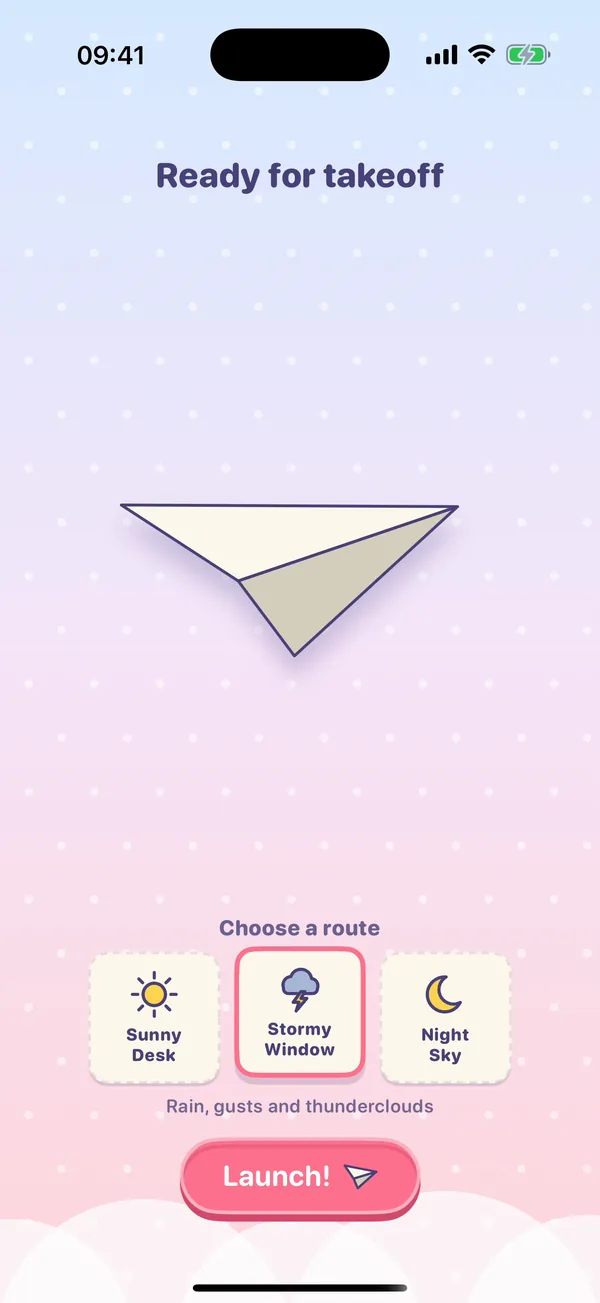
Tap Fold it. Now you fold the plane yourself: drag up on the paper to fold the two top corners in, drag up again to fold the wings, then once more for the final crease. If dragging is awkward, a tap makes each fold too. Three folds, and the screen says Ready for takeoff.
3. Choose a route
Under the finished plane are three tickets, one for each way to the mailbox. Each route has its own sky and its own things in the way.
| Route | What is on the way |
|---|---|
| Sunny Desk | Coffee mugs, candles, scissors, a desk fan and a curious cat’s paw |
| Stormy Window | Rain clouds, thunderclouds, gusts and pencils |
| Night Sky | Candles, scissors and pencils in the dark, and the odd paw |
What you write changes the course a little too. Mention a birthday and candles turn up, with balloons to catch; mention coffee and there are more mugs to dodge; a loving note fills the sky with hearts. When it happens, the app tells you before take-off, with a line such as A birthday note: candles ahead!
4. Fly it
Tap Launch! The plane waits until you touch the screen. Hold your finger down to climb and let go to dive; that is the whole control. A bar at the top shows how far the plane has come between the envelope and the mailbox, and three hearts show how many bumps it has left. Stickers float in the trickiest spots, and whatever you fly through is stuck onto the note.
5. Look at the note, then send it
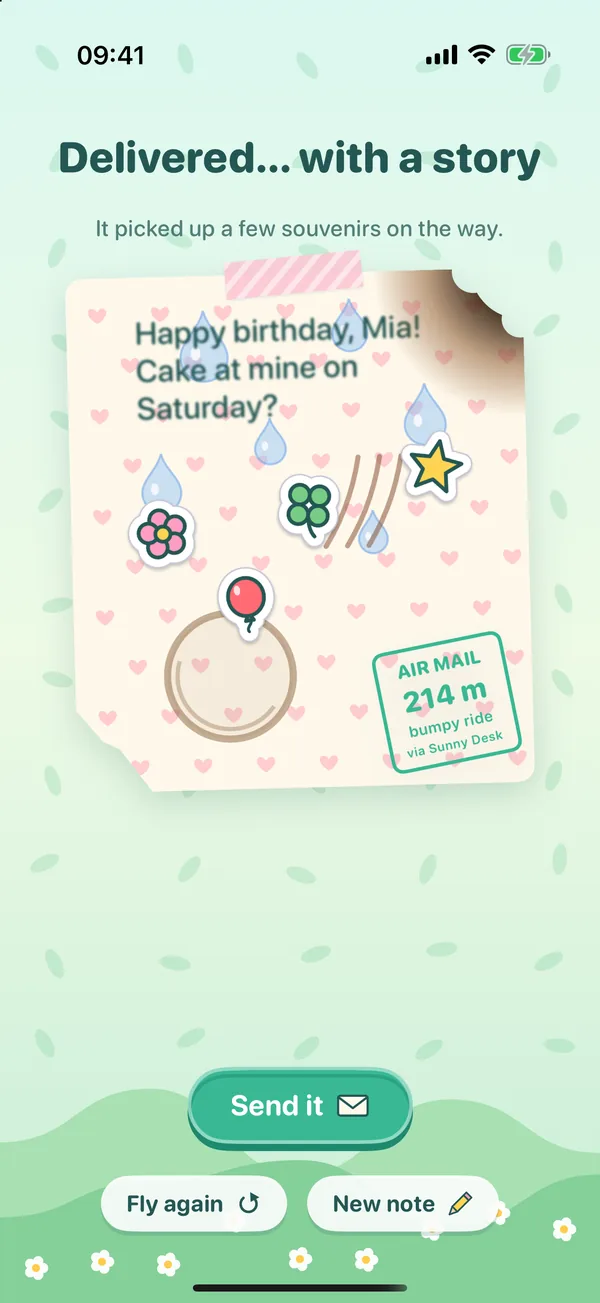
When the plane reaches the mailbox, the note unfolds and you see it exactly as your friend will. Not happy with the landing? Fly again sends the same note round once more, and New note starts over. When you like it, tap Send it. The plane drops into the message field, ready to go, like a photo you have picked but not yet sent. Tap the send button, and it is on its way.
The marks a flight leaves
The note always arrives. What changes is the state it arrives in, because every bump leaves a mark, and the marks travel with the note to your friend.
| If the plane bumps into… | …the note arrives with |
|---|---|
| A coffee mug | A coffee ring |
| A rain cloud or thundercloud | Raindrops, and slightly blurred writing |
| A candle | A singed corner |
| The scissors | A snipped corner |
| The cat’s paw | Claw marks |
| A pencil, the fan or the floor | Creases |
Three bumps and the plane crash-lands. The note is still delivered, crumpled, with an OUCH MAIL stamp that says crash-landed. A flight with no bumps at all ends in Perfect delivery!, and the stamp says perfect flight. Either way, the stamp in the corner records how many metres the plane flew and which route it took.
What your friend sees
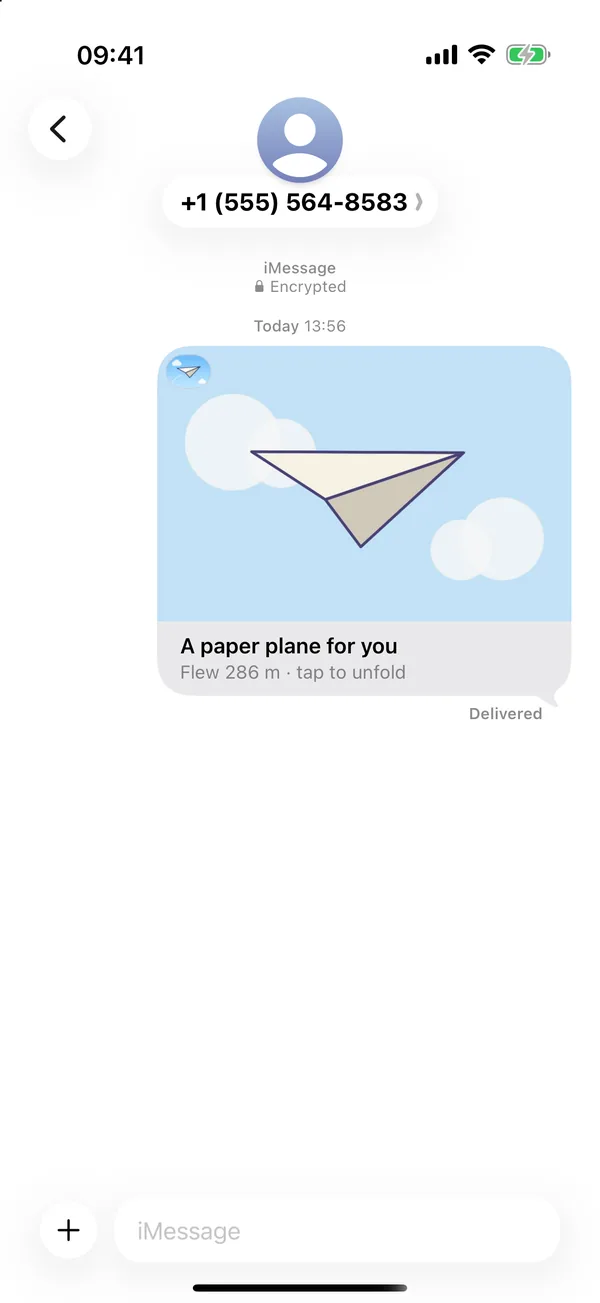
In the conversation, the plane shows up as a bubble with a picture of a paper plane in the sky and the line A paper plane for you, followed by how far it flew, or how far it got before it crash-landed. The picture never shows the note, so the words stay folded until your friend opens it.
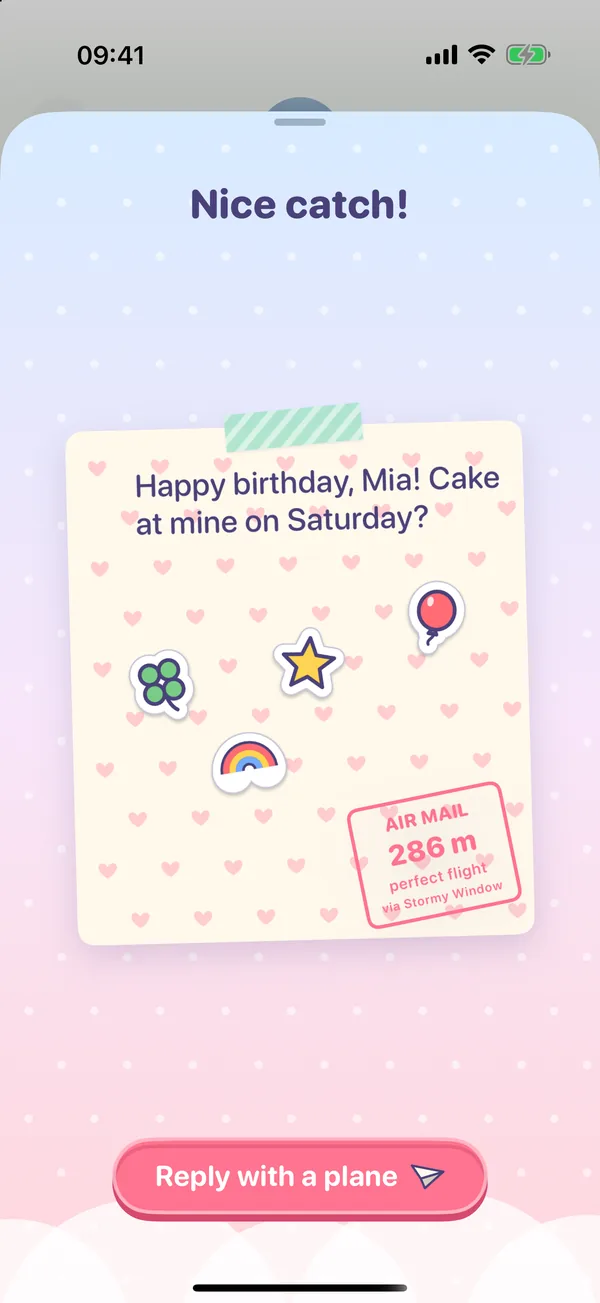
When they tap the bubble, the plane swoops across the screen, three times, each pass a little slower. A tap on the plane catches it, and the screen says Nice catch! If they miss all three, it lands by itself and waits to be unfolded. Then the note opens exactly as it landed: your paper, your marks, your stickers and the stamp. If you tap a plane you sent yourself, you skip the catching and just see your note.
To catch and unfold the plane, your friend needs Paper Post on their iPhone too: Apple’s developer documentation explains that a message like this is opened by the iMessage app on the recipient’s device. If they don’t have it yet, they can get it from the Store in the plus menu, as above. Opening a note is free, and it always looks the way it was sent, even on paper they haven’t unlocked themselves. Paper Post is made for iPhone, and the same page notes that on a Mac, Messages opens a message like this as a web link instead, so a plane is best caught on the phone.
Replying, and keeping a streak
Under the unfolded note is a button, Reply with a plane. It runs the same steps: write, fold, choose a route, fly, send. Every reply counts up the back-and-forth, and from the second plane on, the bubble and the opened note both show it, as in 2 planes in a row. It is a small thing, but it makes a short exchange of notes feel like a rally.
Why paper?
Nothing about a paper plane is efficient. A text gets there faster, and a sticker takes one tap. The point is the few seconds in between. You fold the note yourself, you fly it yourself, and your friend has to reach out and catch it. A short message becomes something you both do, rather than something that just appears.
The marks add the rest. The same words flown twice can arrive crisp one time and with a coffee ring and a singed corner the next, so every note carries a small story of its trip. Nobody needs a paper plane to say happy birthday. It is simply a nicer way to hand the words over.
Where Paper Post comes in
Everything in this post is how Paper Post works. It is our iMessage app for iPhone, on the App Store since 19 October 2026; there is no Android version. It is free to use: writing, folding, flying and sending notes, opening the notes you receive and replying all work without paying, on the Sunny Desk route, with the Cotton Candy look and plain paper.
One in-app purchase, the Full Kit, opens the rest: the Stormy Window and Night Sky routes, all five looks and all twelve papers. It is a one-time purchase, not a subscription, it supports Family Sharing, and it can be restored from the purchase screen.
There is no account to make and nothing to sign in to. The app has no ads, no analytics and no third-party code. The note, with its marks and stickers, is packed into the message itself and sent by Messages, to the people you choose.
Fly a note to a friend
Writing, folding, flying and sending notes is free, on the Sunny Desk route with the Cotton Candy look and plain paper.