Phim
How to Make the iPad Keyboard Smaller (and Why We Built Phim)
To make the iPad keyboard smaller, pinch it closed with two fingers. It shrinks to a small floating keyboard about the size of an iPhone’s, and you can drag it anywhere on the screen by the handle at its bottom. Pinch it open with two fingers to bring the full keyboard back. You can also touch and hold the keyboard key in the bottom-right corner and choose Floating.
That is the quickest fix, and it may be all you need. This post also shows how to add a second keyboard for another language, and tells how a few messages in Thai about the iPad keyboard turned into Phim, our compact keyboard for iPad and iPhone.
Make the iPad keyboard smaller: two ways
- Pinch it. Put two fingers on the keyboard and pinch them together. The keyboard floats and shrinks.
- Use the keyboard key. Touch and hold the key with the keyboard on it, in the bottom-right corner, and choose Floating.
To move the small keyboard, drag the handle at its bottom edge. To make it full size again, pinch it open with two fingers.
Add a keyboard for a second language
If you write in more than one language, each one needs its own keyboard. Go to Settings > General > Keyboard > Keyboards > Add New Keyboard and pick the language. To switch while you type, tap the globe key, or touch and hold it to see the list.
A keyboard from the App Store is added in the same place: after you install it, it appears in the list under Add New Keyboard, under “Third-Party Keyboards”.
How Phim started: a chat in Thai
Phim began with a few messages about typing Thai and English on an iPad. They were short and very honest:
| The message | What it means |
|---|---|
| ใหญ่อีตาย | It’s way too big. |
| ปุ่มเปลี่ยนภาษา จอใหญ่มันไม่มี | On the big screen, there’s no language key. |
| อยู่คนละฝั่งกัน | They’re on opposite sides. |
| ย่อ ขยายได้ | It should shrink and grow. |
| ปรับสูง ต่ำ | And go taller or shorter. |
Those five lines became the list of what to build. The name is Thai too: พิมพ์ (phim) is the Thai word for “to type”.
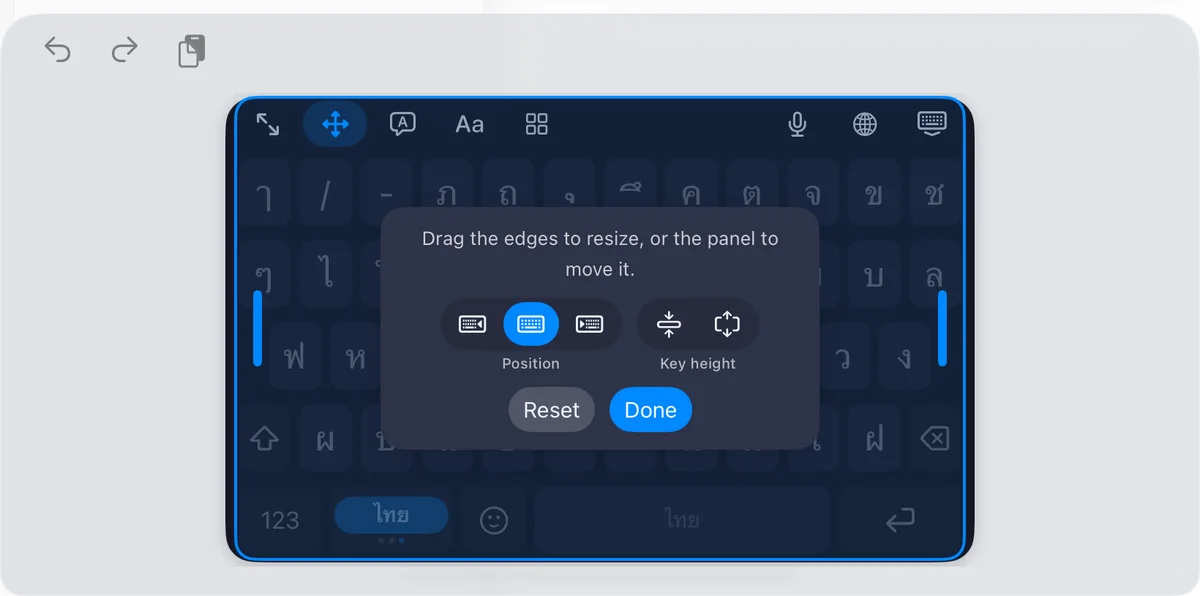
What Phim does about each one
- Too big: Phim starts as a compact panel with iPhone-sized keys. It can be any width from 340 points to the full screen, and one button switches between compact and full width.
- No language key: Phim has a language key of its own. With two languages it shows both, like ไทย | EN, and lights up the one in use. One tap moves to the next.
- Opposite sides: the language key stays in the same place on every page and in every language. Every layout has four rows, so the keyboard never changes height under your fingers.
- Shrink and grow: drag the panel to move it, dock it left, centre or right, and drag its edges to resize it.
- Taller or shorter: the keys can be from 34 to 60 points tall.
Thai and English were only the start. Phim now has 52 languages, from German and Arabic to Hindi, Korean and Vietnamese, and every non-Latin layout follows Apple’s own layout for that language. Touch and hold the language key to choose which ones it moves between.
From a compact keyboard to a full toolkit
Phim started as a compact iPad keyboard. Now it is a full toolkit for iPad and iPhone: 52 languages, 31 fancy text styles for bios and messages, stickers you can draw yourself, 32 original stickers, 22 themes and 8 key sounds. No ads, no tracking, and one payment with no subscription.
Private by default
A keyboard sees everything you type, so we kept Phim simple: it has no network code at all, in the keyboard or in its app. Typing, the languages, suggestions and text styles all work without Full Access. Full Access only unlocks the extras that need it: copying stickers and doodles, the clipboard history and key sounds. The privacy policy lists what Phim keeps on your device.
A smaller keyboard with a language key
Phim is on the App Store for iPad and iPhone, one payment with no subscription. See what Phim can do.